 DockThumb
Keep any window on top. One shortcut, it stays put.
A video call while you take notes, a recipe while you cook, a build log while you code: some windows should stay visible no matter what you click.
What macOS does by default
macOS has no “always on top” option for regular windows. Picture in Picture works for some videos only. The usual trick is Split View or a second display.
How it works in DockThumb
- Press ⌃⌥P to pin the active window above everything else.
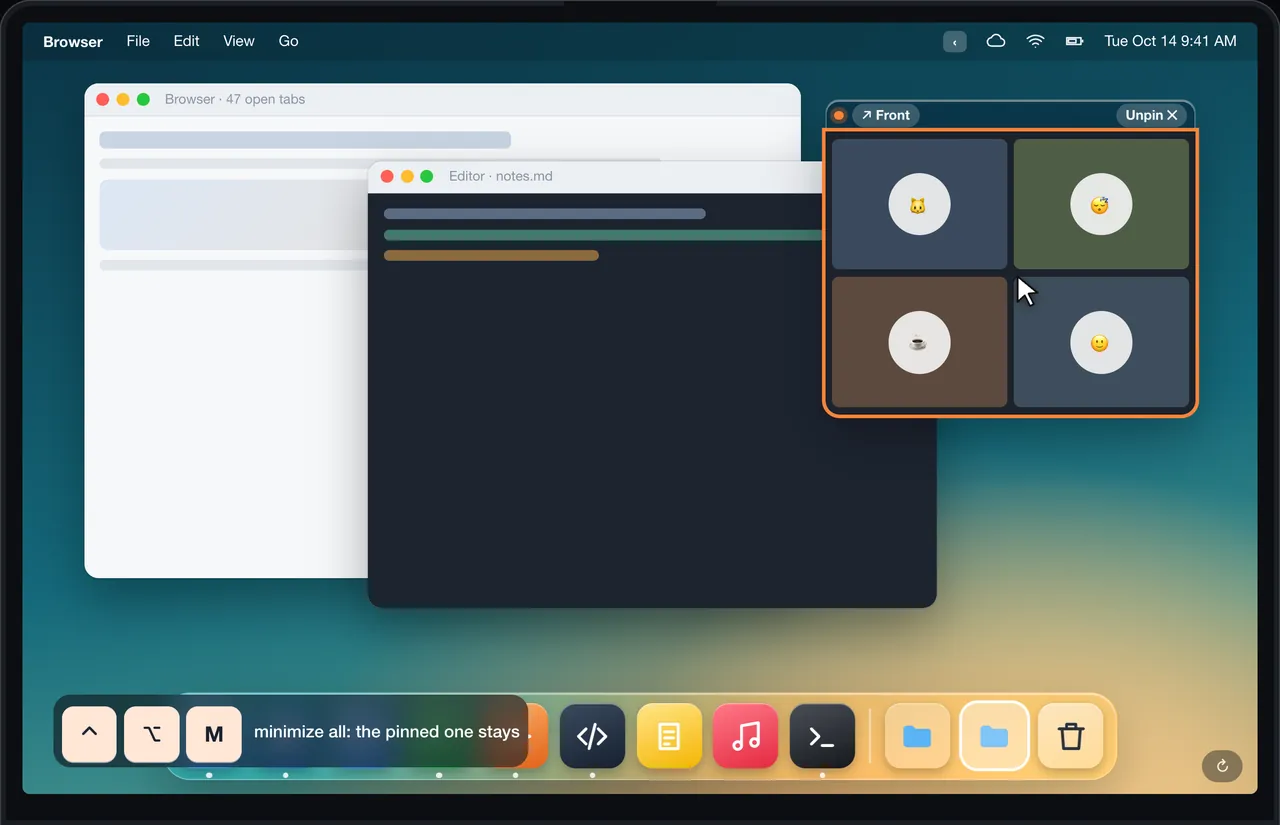
- It stays put: minimizing a group, tiling or hiding everything leaves the pinned window where it is.
- A small bar lets you move it, bring its app forward or unpin it in one click.
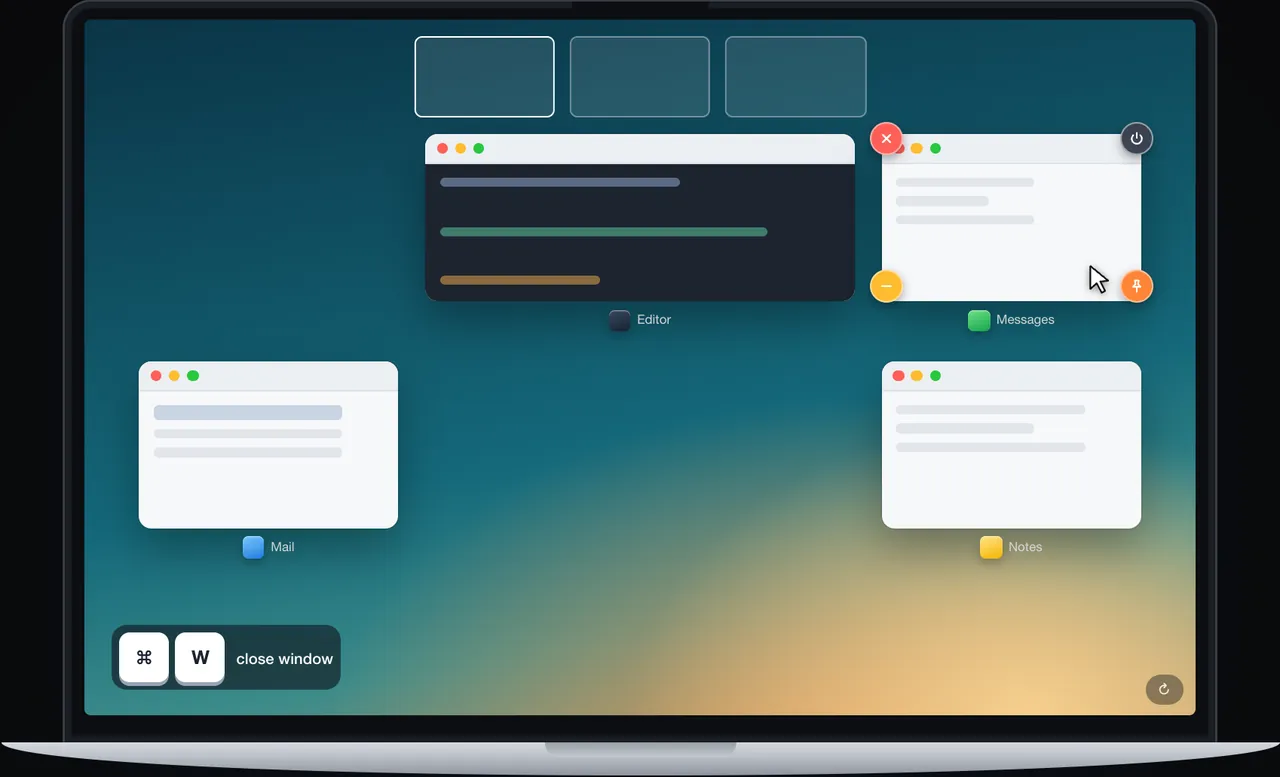
- You can also pin from the switcher thumbnail or from Mission Control.
Shortcuts
| Keys | What it does |
|---|---|
| ⌃⌥P | Pin or unpin the active window |
Every shortcut can be changed in Settings.
What it looks like in DockThumb
Other options
Floaty (about $7) pins web pages and windows. Some apps have their own “float on top” setting, like video players. DockThumb pins any window and adds the switcher, tiling and Dock shortcuts for $4.99 once.
Questions
How do I keep a window always on top on Mac?
macOS cannot do it on its own. With DockThumb, press ⌃⌥P on the window you want to keep in front.
Can I still click inside the pinned window?
Yes. The content stays live and clickable, and you can resize it from the corner.
Does it work with video calls?
Yes, that is one of the main uses: pin the call and keep working in the other windows.
Hover it. Press a key. That’s the trick.
$4.99 once, no subscription, no account, 14-day refund. macOS 14 or later on Apple silicon.